If you’ve spent any time across the Microsoft suite of tools, you’ll know firsthand the frustration of finding “that setting” you need to enable to access to “that one thing” to perform “that one task”.
I recently re-discovered this when working with a client to set up Power BI access as an external user. Microsoft has released some sweet new features the past 1-2 years allowing external users to connect to and manage content in Power BI. Unfortunately, there are a number of “gotchas” when setting this up.
The company I work for has traditionally asked clients to create new developer accounts on their own tenant, but this has its own limitations, including a larger lift and higher monthly expenses for the client, the challenge of jumping between multiple client tenants in the web browser, and more.
To make things simpler, I decided to test these new B2B features with a client. Big thanks to one of my co-workers who I found had already paved the way and provide guidance through this process. I’ve compiled the steps to get set up for your (and my own) future convenience.
The Scenario
An Azure AD user on the home tenant needs permission on the client’s tenant to act as a Power BI Admin, including creating workspaces, assigning permissions, deploying content via apps, and managing tenant settings. They need to be able to develop reports on a local computer and publish content to this tenant. They have both a Pro and Premium-Per-User license assigned on the home tenant.
Steps to Get Set Up
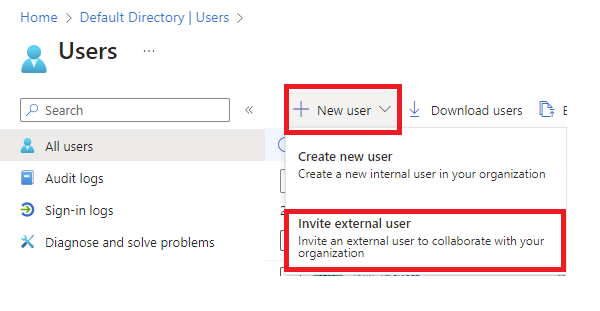
- Have the client invite your user through the “Invite external user” section in Azure AD. You’ll be sent a one-time email to accept the invite and set up multi-factor authentication (if enabled).

- Once the external user is created, have the client assign them the following roles through the “Add assignments” section.
- Directory Readers
- Without this enabled, you won’t be able to see other users in Power BI and grant them access to any content.
- Fabric Administrator

- Directory Readers
- The client’s Power BI administrator needs to ensure the following settings are enabled on their Power BI tenant to allow you to access content.
- Allow Azure Active Directory guest users to access Microsoft Fabric.
- Allow Azure Active Directory guest users to edit and manage content in the organization.
- Show Azure Active Directory guests in lists of suggested people.

- Pro-tip: Have the client create an “External Power BI Developers” AD Group with the appropriate assignments (in step 2) and assign that security group to the settings above.
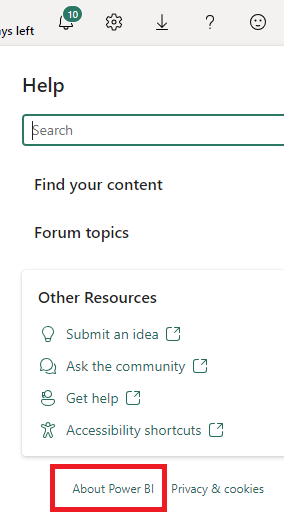
- Have the client send you the URL to their Power BI tenant. This can be found by navigating to Power BI, clicking the “?” in the top right corner, “About Power BI”, and copying the Tenant URL in the pop-up box.
- You will be unable to access their tenant by navigating to app.powerbi.com (this will always send you to your home tenant). Make sure to use this specific link whenever you need to access their Power BI environment.
- Pro-tip: Store the URL and your email/password in a password manager such as LastPass. This will allow you to quickly launch to multiple client tenants within the same browser window and provide an easy way to store multiple client’s access info.
- You will be unable to access their tenant by navigating to app.powerbi.com (this will always send you to your home tenant). Make sure to use this specific link whenever you need to access their Power BI environment.
- (Optional) If working with an XMLA endpoint on Premium capacity or PPU, you can connect to the dataset locally by using the Analysis Services Power BI connector, inputting the workspace connection, and replacing “myorg” with the client’s domain.
- i.e. powerbi://api.powerbi.com/v1.0/clientdomain.com/WorkspaceName
Conclusion
And there you have it! Use this link to log into Power BI, access, and create content. Rather than trying to “Publish” from Power BI Desktop, I like to navigate to the workspace and choose “Upload”, which avoids the risk of publishing to the wrong tenant. Hopefully this helps simplify the process of managing multiple client Power BI environments with just one set of credentials.


 Will Trickett
Leave a reply to Jake Burns Cancel reply