Have you ever had a Power BI report that was unnecessarily large and suffered from slow refreshes? Or maybe navigating the Power BI Desktop file was a nightmare because so much data was loaded into the model?

Semantic models in Power BI can be like a tree: They need to be pruned at times to promote efficient growth. And this process of “pruning” the model size has a number of advantages that we’ll discuss.
Semantic model size refers to the size of the compressed data sitting in the Power BI Desktop file (or published to Power BI Service). This can be found by opening File Explorer and locating the Size column next to the Power BI Desktop file in question. The following files are quite small, but sizes can easily reach into the hundreds of MBs to several GBs or higher.

So, what are the benefits of improving your semantic model size?
Benefits
1. Faster Report refreshes
If you’re loading data into Power BI Desktop (import mode), each change in the source data requires a refresh to view the updates. This is often handled with a scheduled refresh. But sometimes, new data needs to be viewed quickly (such as at month-end, or during report development). In these cases, a smaller dataset will typically load faster than one that isn’t optimized for size.
Dataset size is only one of the factors to consider when improving refresh performance. Another (often more important) factor is the number of complex transformations happening inside Power Query or during the load from an external source. That said, size is definitely a factor to consider for performance.
2. Fewer Power BI service interruptions
Compute resources in Power BI Service are shared between all the users in an organization. Sometimes, just a few inefficient semantic models being refreshed at the same time can cause service interruptions and delay the ability to access mission-critical data. As the owner of your data, it’s important to follow best practices to ensure you don’t compete for shared resources that aren’t needed.
3. Reduced risk of going over the size limit
Power BI semantic models have a size limit of 10 GBs when published to Power BI Service (1 GB for organizations that only use Pro licenses). Optimizing the size of your model ensures that you don’t accidentally go over this limit and cause the report to not be publishable.
4. improved performance of power bi desktop (when developing)
Power BI Desktop files can often become unwieldy with too much data. Slow navigation between tabs and loading of data previews can be frustrating as a developer and lead to inefficiencies. Keeping your model size small reduces this problem (and keeps a smile on your face!).
Optimization Techniques
So, how do we easily decrease the size of a semantic model? Improving model size is quite simple, thanks to a helpful tool known as DAX Studio. If you haven’t already, you can download it from the DAX Studio website.
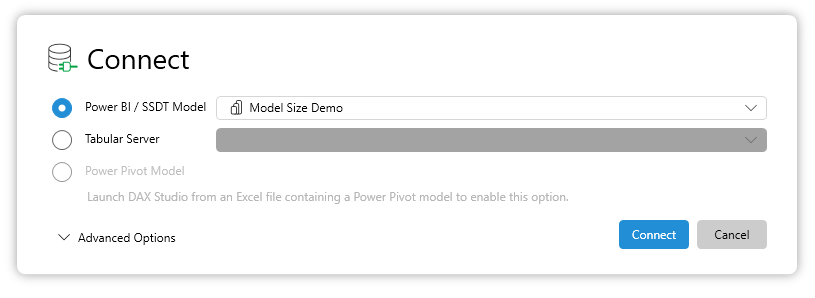
When opening DAX Studio, you’ll want to have the Power BI Desktop file open as well so that you can connect to it. There are other options available to connect to models already deployed to Power BI Service, but we’ll focus on just local files for the sake of this blog. The opened Power BI file should appear in the Power BI / SSDT Model box to connect to.
Once connected, navigate to the Advanced tab and click on “View Metrics”. You’ll see a tab called “VertiPaq Analyzer” appear on the bottom of the screen, which is what we’ll use for our initial discovery.
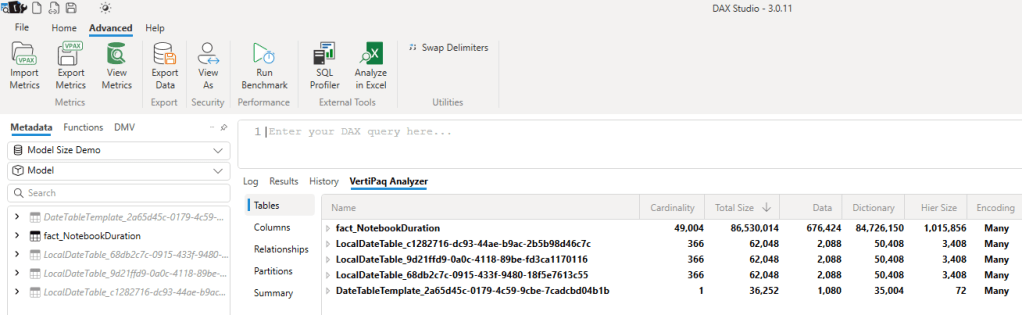
Using this data, we can start the process of optimizing size. I typically follow these steps to reduce model size:
- Remove unnecessary, large tables.
- Remove unnecessary, large columns.
- Reduce the cardinality of necessary columns.
- Check report pages to make sure nothing is broken.
Optimization Walkthrough
I’ll use this example file to quickly walk through the steps detailed above.
First, looking at the tables and sorting by Total Size (bytes), you can see that fact_NotebookDuration accounts for almost the entire amount of storage in my model. My report is based on this table, so I can’t remove it, but if there were other large tables in the model that weren’t used, these would be great candidates. Removing the other tables below will have limited impact because their size is so small.
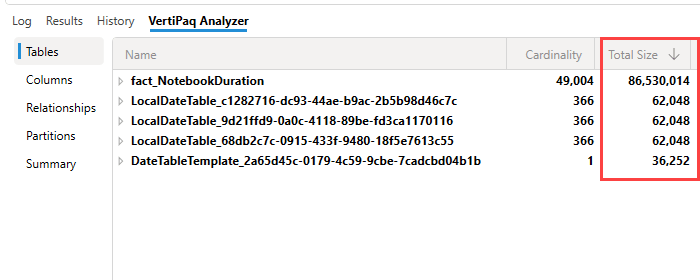
That said, these other tables represent “shadow” tables in my model that Power BI Desktop automatically created when I imported data. This is due to the setting “Auto date/time” being selected in Power BI Desktop. To remove these unnecessary tables, navigate to File > Options and Settings > Options > Current File > Data load and deselect the setting. I’ll go ahead and do this for the sake of keeping the model clean.
Next, I’ll navigate to the columns tab and view the size for each column. As you can see below, the column “ActivityOutput” (a JSON string in my fact table) takes up a massive amount of space and accounts for 94.08% of the entire model size (see the % DB column on the far right).
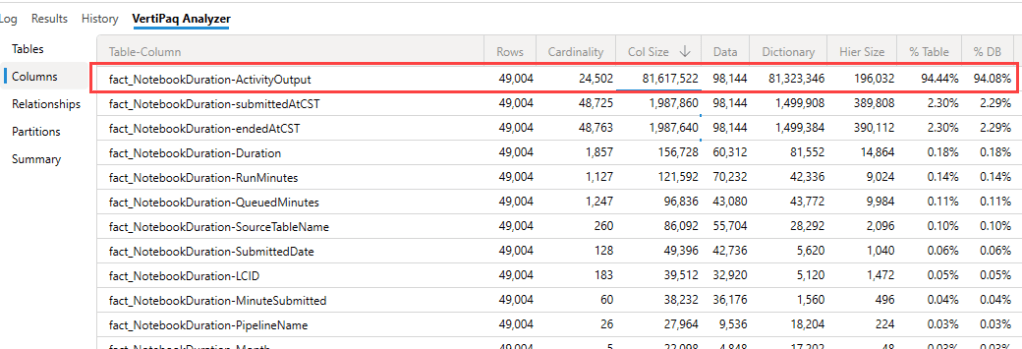
This means that if this model was 1 GB in size, deleting just this column would reduce the model size to just 60 MB. As it stands, I can delete this column from the model since its unused in any reports. After deleting a column, I save the Power BI file, click “Refresh Metadata” in DAX Studio, and run the View Metrics to see the changes.
Lastly, with ActivityOutput removed, I look at the next columns, submittedAtCST and endedAtCST. I can see that these columns are also guilty of large size.
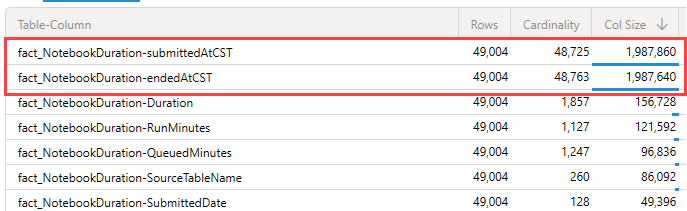
This is because of high “cardinality”, or the presence of many unique records in those columns. If I view the data in Power BI Desktop, I can see they are DateTime fields (notorious for issues with cardinality).

To easily reduce the cardinality, it’s a good idea to split each of these columns into two, one for date and one for time. This reduces the number of unique records in each column and allows the data to be compressed more efficiently.
After doing that, I can still access the needed data for both date and time, but the size and cardinality of endedTime CST and endedDateCST has been reduced significantly.

Lastly, I always return to my Power BI Desktop reports and ensure that nothing has broken after removing these columns. 🙂
Conclusion
As you can see, finding and removing unneeded storage space is quite simple with tools like Tabular Editor Vertipaq Analyzer. My example was quite simple; most models will have many more tables and columns to analyze. But the process is the same, and its usually easy to quickly reduce the size of a model by just removing a few unnecessary tables or columns.
I hope this helps you create efficient semantic models as you develop and maintain them over time!
 Will Trickett
Leave a comment